 Claude for BeginnersFree course · about 1 hour
Your First Conversation with Claude

MODULE 1: Your First Conversation with Claude
By the end of this module, you’ll be able to: Open Claude, send your first message, and read the reply with confidence.
Time: about 12 minutes · You’ll need: a device with internet and an email address.
Why this matters
Everything else you do with AI starts here, with a single message. Most people feel nervous before their first try and then surprised at how ordinary it feels. It is just typing, the way you would text a knowledgeable friend. Once you have done it once, the mystery is gone for good.
Lesson 1.1: What Claude actually is
Claude is a tool you talk to in plain language. You type what you need and it writes back in full sentences. That is the whole idea.
The most useful thing to understand on day one is what Claude is not. It is not a search engine. With a search engine you type a few keywords and get a list of blue links to go and read. With Claude you write a normal sentence and get a direct answer written just for you.
Why this matters: People who treat Claude like Google type one or two words and get vague replies. People who treat it like a helpful colleague get useful answers. That single shift is worth more than any trick.
Lesson 1.2: Open Claude and sign in
Follow these steps exactly. Each step is one small action.
- Open your web browser and go to claude.ai. On a phone, you can instead download the Claude app from your app store.
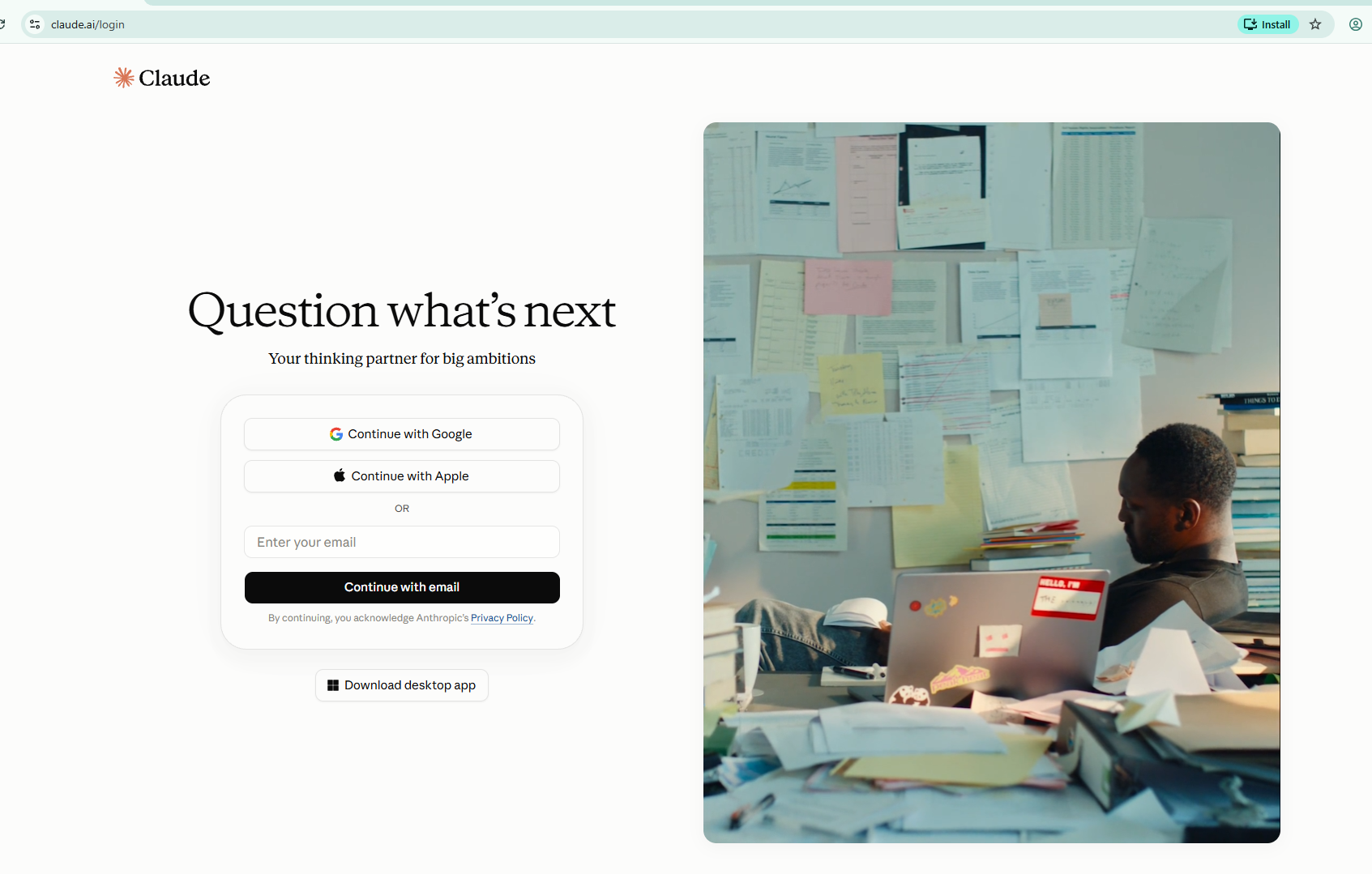
- Click Sign up and create a free account with your email address.
- Follow the prompts to confirm your account. You should land on a screen with an empty chat and a message box near the bottom.
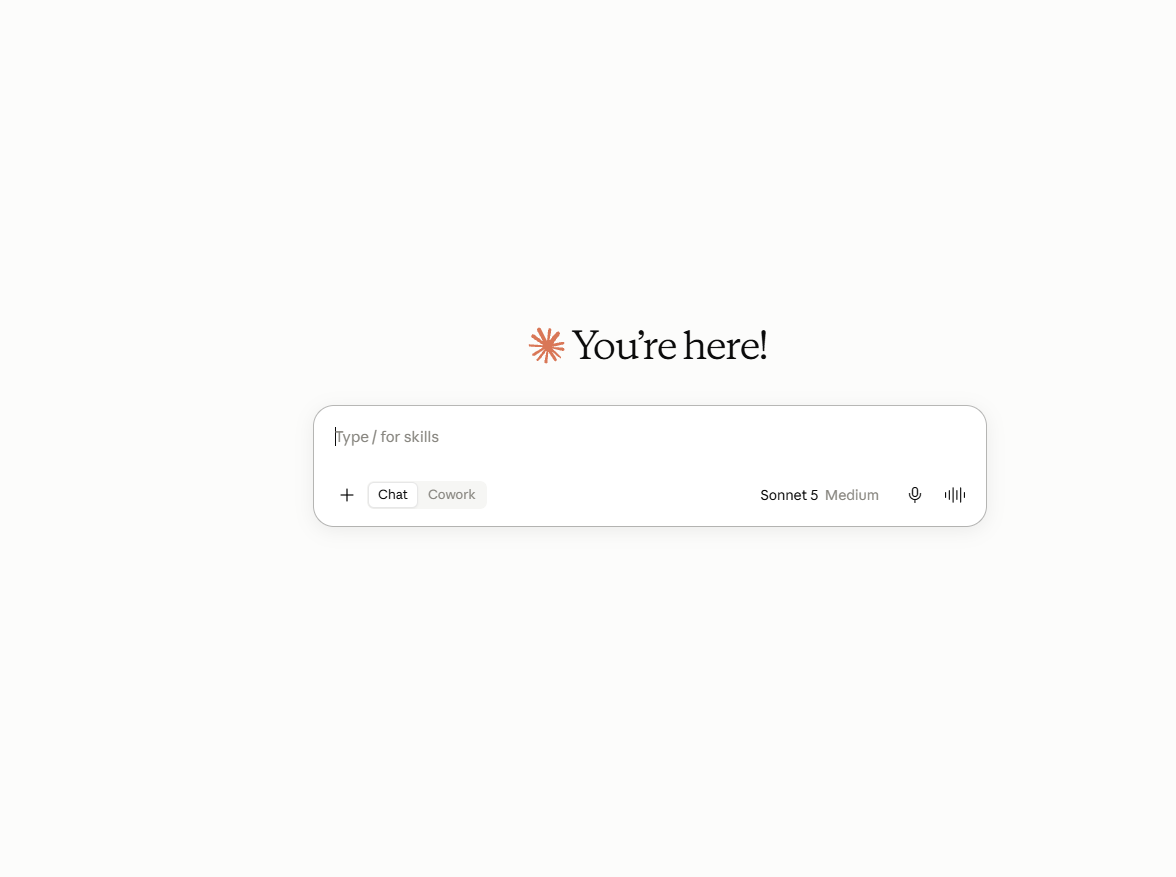
Check your progress: You should now see an open, empty chat with a box waiting for you to type. If you are stuck on a confirmation email, check your spam folder.
Lesson 1.3: Send your first message
- Click inside the message box.
- Type this, word for word: Explain what you can help me with, in simple terms.
- Press Enter, or tap the send arrow.
- Watch the reply write itself out, line by line.
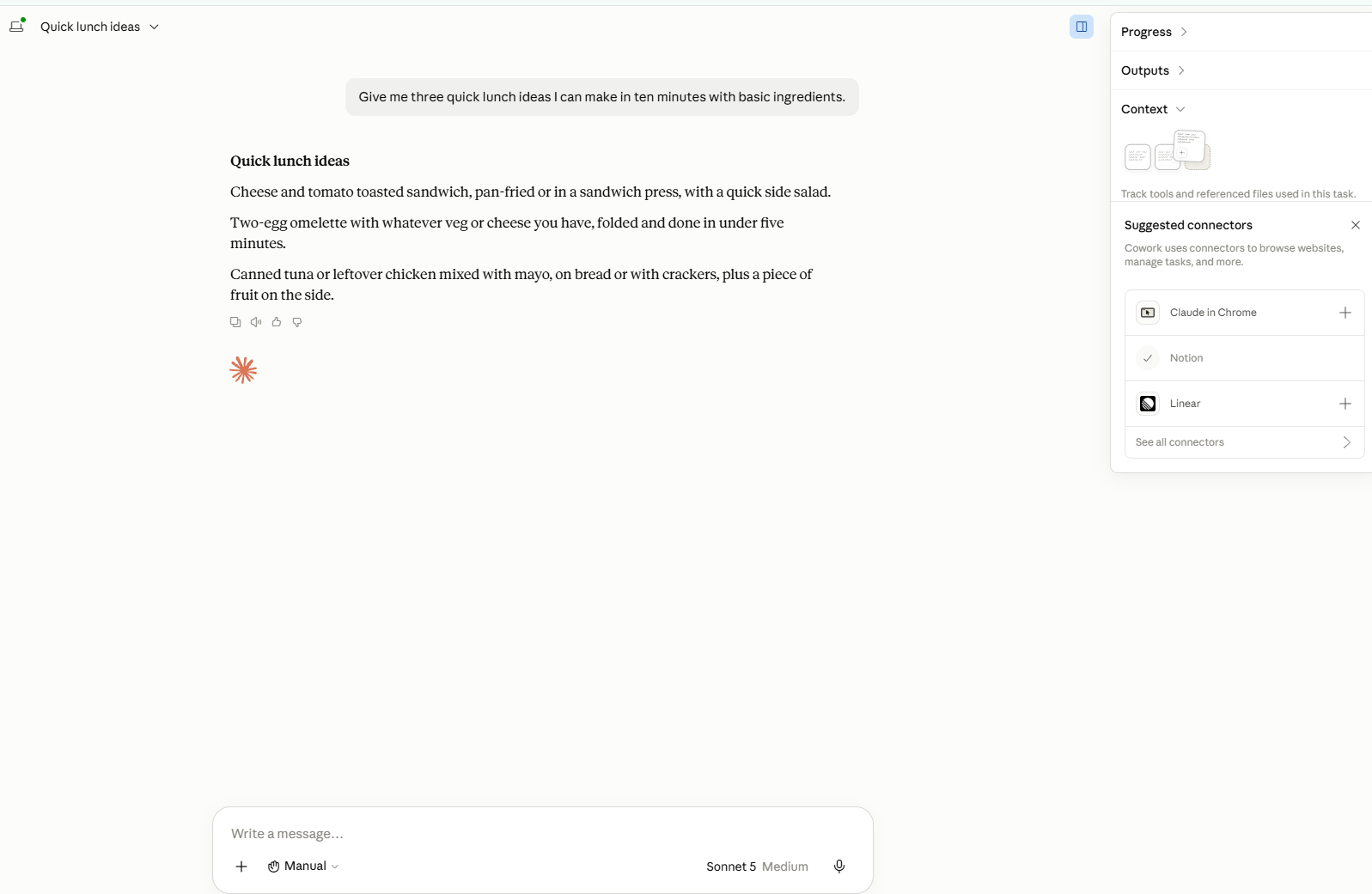
What you should see: Your message appears, then a friendly answer in full sentences. That is a conversation. You just had your first one.
Example: an ordinary first question
Let’s say you are a small business owner with no time. You could type: Give me three quick lunch ideas I can make in ten minutes with basic ingredients. You will get three real suggestions, not a list of recipe websites to trawl through.
Common mistakes to avoid
Mistake 1: Typing keywords instead of a sentence.
Typing “lunch ideas” works, but “three quick lunch ideas I can make in ten minutes” works far better. Full sentences give Claude something to work with.
Mistake 2: Expecting it to know your private details.
Claude does not know who you are or what your business is unless you tell it. That is normal, and Module 2 shows you exactly how to fix it.
Mistake 3: Deleting the chat when the first answer is not perfect.
You never have to get it right in one go. Module 3 is all about improving answers. For now, just get comfortable sending messages.
Quick practice (5 minutes)
Do this now:
- Open a new chat.
- Ask Claude one real question about your day, in a full sentence.
- Read the reply. Notice it answered you, not a search box.
Key takeaway
Claude is an assistant you talk to in plain sentences, not a search box you feed keywords.
Next up: You can send a message now. In Module 2 you’ll learn the single skill that turns a so-so answer into one you can almost use as is.
A gentle nudge: If “an assistant you can just talk to” is the part that excites you, that is exactly the idea behind every tool in the Ankor store. Keep going, there is nothing to buy yet.
Stay in the loop
Get practical AI tips and product updates, no spam, unsubscribe any time.

